Rizwan Haider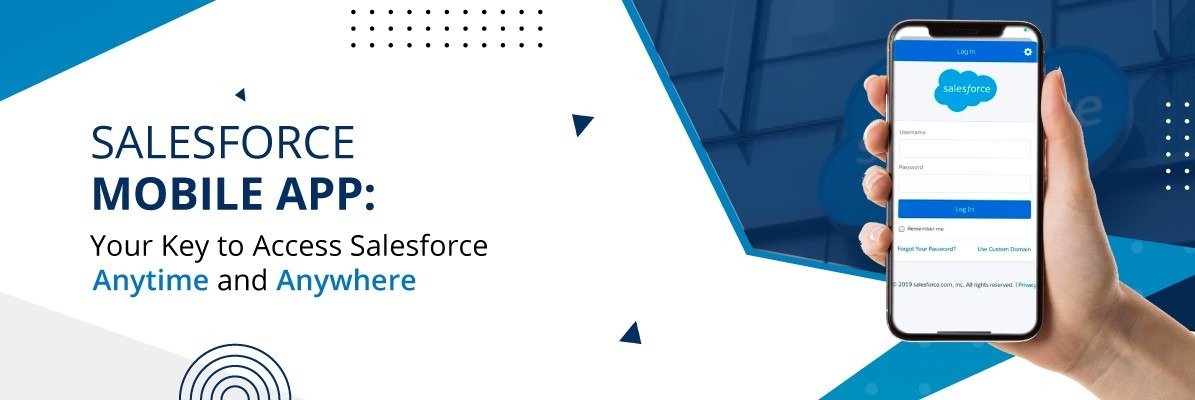
Introduction
Salesforce admins get this request more often than you’d think: a sales rep is stuck at a client site without the mobile app installed, and they just need to check an account from their phone’s browser. I’ve handled this exact ticket more times than I can count, and the fix usually takes less than five minutes once you know where to look.
At nextsider.com, we cover a lot of practical SaaS admin topics like this one, because these small configuration steps tend to trip up even experienced teams. This guide walks through exactly how to enable mobile web access in Salesforce, what can block it, and how to fix common access issues.
What Is Salesforce Mobile Web Access?
Salesforce mobile web access lets users log into Salesforce through a phone or tablet’s browser instead of downloading the native mobile app. It uses a scaled-down version of the Lightning interface.
This is different from the Salesforce mobile app, which is a dedicated app installed from the App Store or Google Play. Mobile web access is browser-based, so there’s nothing to install.
Salesforce Mobile App vs Mobile Web Browser
- Mobile app: Installed on the device, works better offline, supports push notifications
- Mobile web: No install needed, works on any supported browser, good for quick one-off access
- Performance: The app is generally faster and smoother for daily use
- Best use case: Mobile web is ideal for shared devices or users who only need occasional access
How to Enable Mobile Web Access in Salesforce Setup
This is the main organization-level switch. Without this turned on, no user in your org can access Salesforce through a mobile browser, regardless of their individual permissions.
Step-by-Step: Turning On the Setting
- Log in to Salesforce as an administrator
- Click the gear icon and select Setup
- In the Quick Find box, type Salesforce Mobile App
- Click Salesforce Settings under Mobile Apps
- Find the Mobile Browser App Settings section
- Check the box labeled Enable Salesforce mobile web
- Click Save
In my experience, this step alone resolves most “I can’t access Salesforce on my phone” tickets. It’s an org-wide setting, so once it’s saved, it applies to everyone unless individual permissions say otherwise.
Why This Setting Is Sometimes Missing
I’ve seen orgs where this checkbox was never touched, simply because nobody needed mobile access when the org was first set up. It’s easy to overlook during initial configuration since it doesn’t affect desktop users at all.
How Do You Fix Mobile Web Access If a User Still Can’t Log In?
Even after the org-level setting is on, some users may still get blocked. This usually comes down to profile or permission set restrictions, not the browser itself.
Checking the User Permission
- Go to Setup and search for Profiles or Permission Sets
- Open the profile or permission set assigned to the affected user
- Search for Mobile Web under System Permissions or General User Permissions
- Enable it if it’s turned off
- Save the changes
Common Reasons Access Still Fails
- The user’s profile has Mobile Web explicitly disabled
- IP restrictions on the profile are blocking the mobile network
- Login hours configured on the profile don’t cover the current time
- The browser being used isn’t officially supported
Pro Tip: When I troubleshoot this, I always check IP ranges first. A lot of orgs lock login access to office IP addresses for security, which silently blocks mobile browser logins from cellular data even when everything else looks correct.
Which Browsers Support Salesforce Mobile Web?
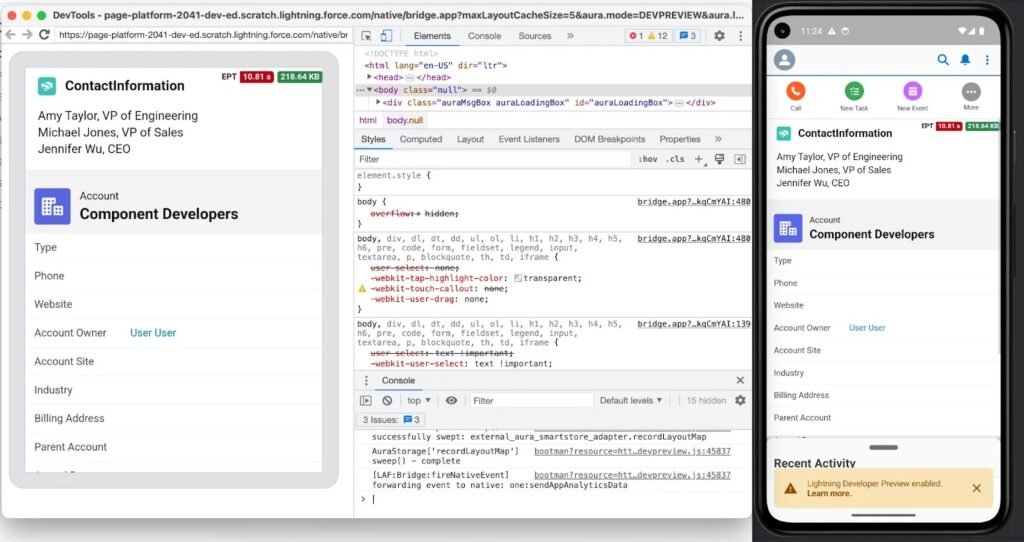
Salesforce mobile web works on modern mobile browsers, but not every browser gets full support. Sticking to supported ones avoids random display or login issues.
Supported Mobile Browsers
| Browser | Platform | Notes |
|---|---|---|
| Safari | iOS | Fully supported, most reliable on iPhone/iPad |
| Chrome | Android and iOS | Fully supported |
| Samsung Internet | Android | Generally works, occasional layout quirks |
I’ve personally run into odd rendering issues on older Android browsers that aren’t Chrome or Samsung Internet, so I usually recommend sticking to Chrome or Safari for the smoothest experience.
Frequently Asked Questions
Does enabling mobile web access affect the Salesforce mobile app?
No, these are separate settings. Turning on mobile web doesn’t install or affect the native app for users.
Can I restrict mobile web access to specific users only?
Yes. Keep the org-level setting on and control access individually through the Mobile Web permission on each profile or permission set.
Do I need a special Salesforce license for mobile web access?
No additional license is required. Mobile web access is included with standard Salesforce user licenses.
Why does mobile web access work on Wi-Fi but not cellular data?
This usually points to IP-based login restrictions on the user’s profile that only allow certain networks.
Is Salesforce mobile web the same as Salesforce Classic mobile?
No, Salesforce Classic mobile was an older, separate product. Current mobile web access runs on the Lightning interface.
How long does it take for the setting to apply after saving?
It typically takes effect almost immediately, though some users may need to log out and back in.
Can admins see who is using mobile web access versus the app?
Yes, login history in Setup shows the source, including browser and platform details for each login.
Does mobile web access work on tablets as well as phones?
Yes, it works on any supported mobile browser regardless of screen size.
Conclusion
Enabling mobile web access in Salesforce comes down to two checks: the org-wide Settings, and the Mobile Web permission on the user’s profile or permission set. Once both are in place, access issues are almost always related to browser support or IP restrictions rather than the feature itself.
We put together this guide on nextsider.com based on the kinds of practical admin issues that come up again and again in real Salesforces orgs. If you’re setting this up for your team, start with the org-level setting first, then troubleshoot individual users from there.